How to schedule LinkedIn posts: a step-by-step guide
Learn how to schedule LinkedIn posts for consistent publishing and better reach, so you show up at the right times without the daily manual grind.
 By
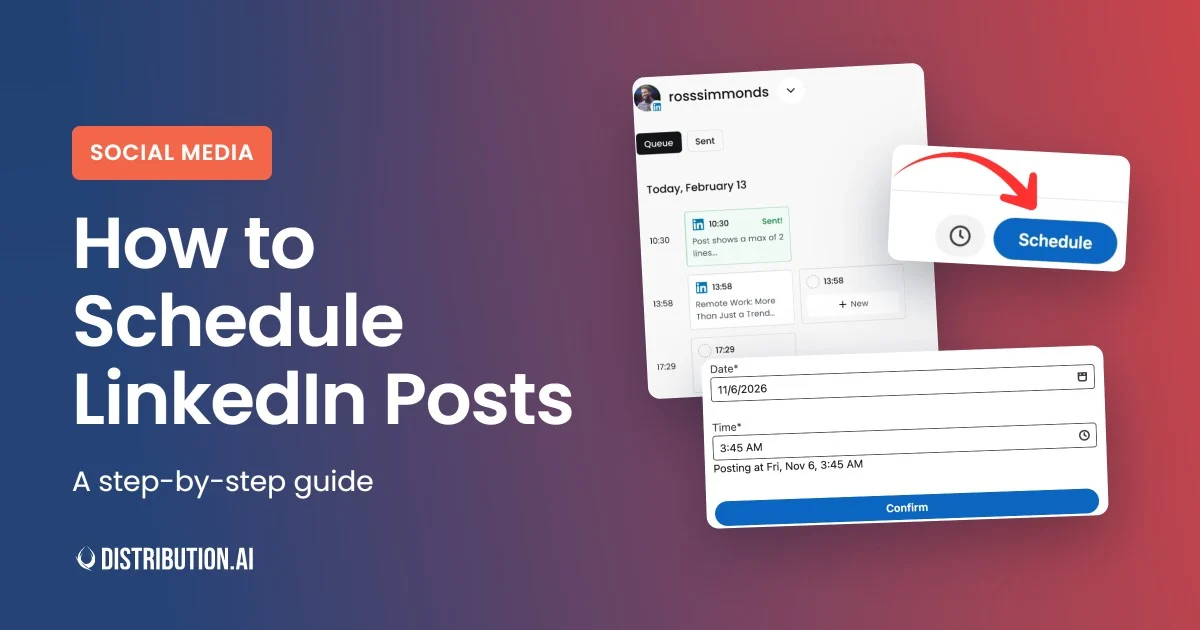
Scheduling your LinkedIn posts in advance is one of the simplest ways to stay consistent, post at the times your audience is actually online, and stop scrambling to publish something every morning.
You can do it directly inside LinkedIn or with a dedicated tool, and both take just a few minutes to set up.
This guide walks through how to schedule LinkedIn posts step by step, for both personal profiles and company pages, plus a few tips to help your scheduled posts land with more reach.
Key Takeaways
- LinkedIn lets you schedule posts for free on personal profiles and company pages, up to three months in advance, without using a third-party tool.
- You can schedule posts from desktop or mobile. LinkedIn also lets you view, reschedule, or delete upcoming posts, but you cannot edit their content after scheduling.
- LinkedIn’s native scheduler works well for basic publishing, but it lacks bulk scheduling, multi-account management, and advanced analytics.
- Distribution.ai helps you turn existing blogs, podcasts, and videos into multiple LinkedIn posts. You can customize the brand voice, review drafts, and schedule content from one place.
- Posting consistently matters more than chasing a single perfect time. Start with midweek publishing windows and use your audience engagement data to refine your schedule.
- Scheduling posts does not automatically reduce their reach. Content quality, relevance, and audience engagement still influence how well your LinkedIn posts perform.
Can you schedule posts on LinkedIn?
Yes. LinkedIn has a built-in scheduler that lets you set a post to publish later, and it works for both personal profiles and company pages, free, with no third-party tool needed.
You can schedule up to three months in advance.
Here’s how to do it on a desktop.
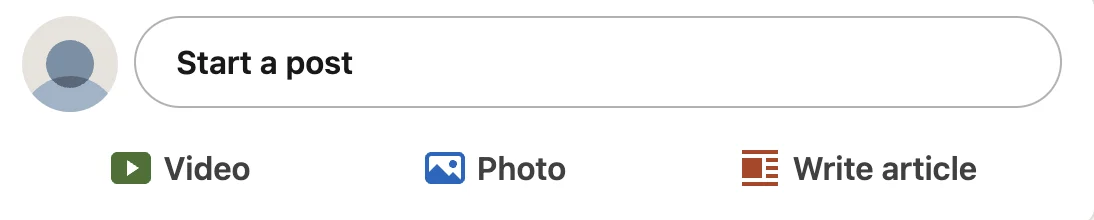
- Click Start a post at the top of your feed.
- Write your post and add any images, video, or a document.
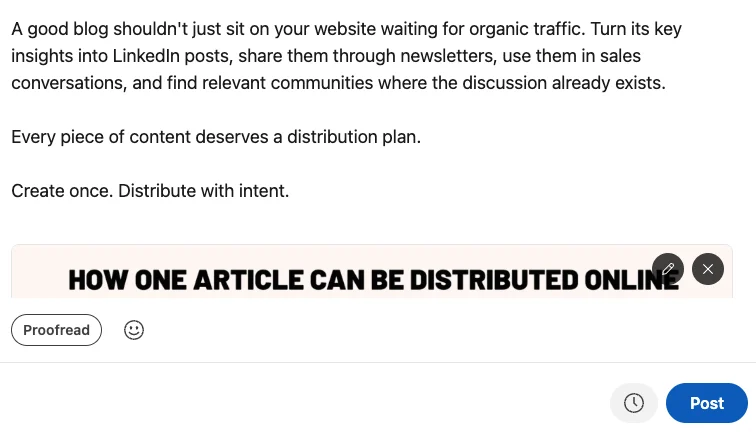
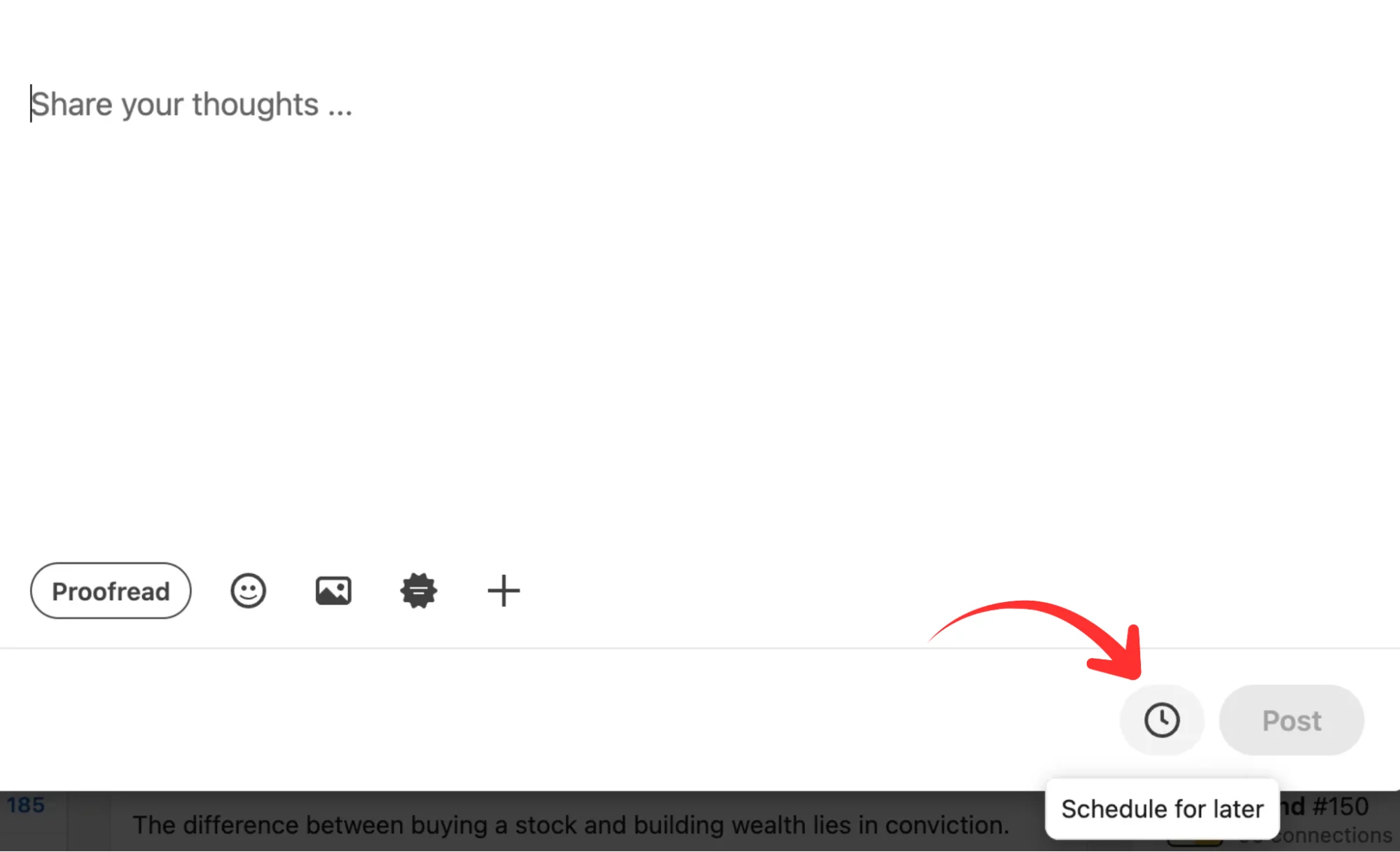
- Click the clock icon in the bottom right of the post window.
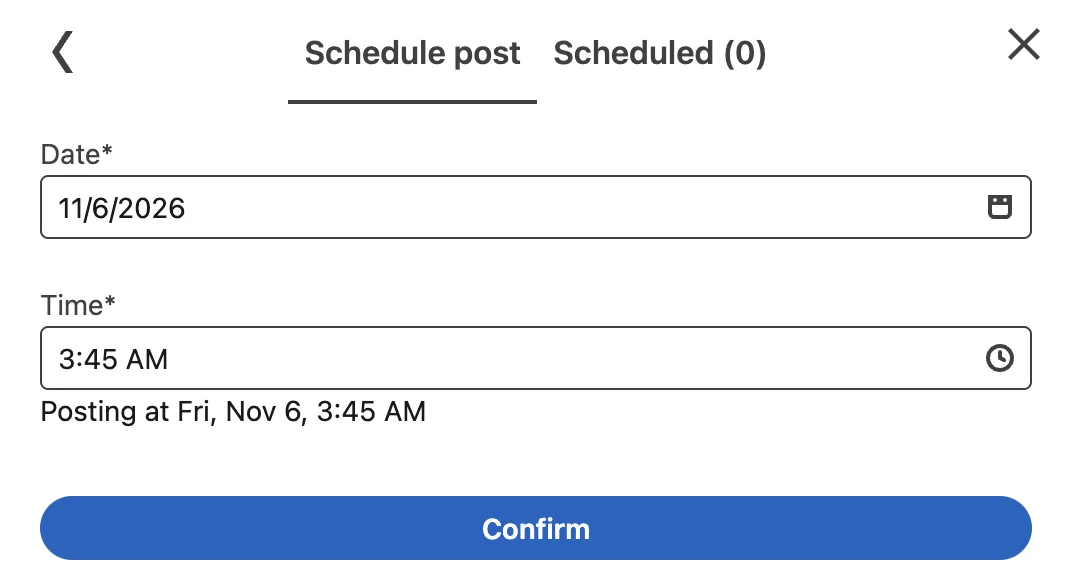
- Pick a date and time. If your audience sits in another time zone, schedule for theirs.
- Click Next, review the post, then hit Schedule.
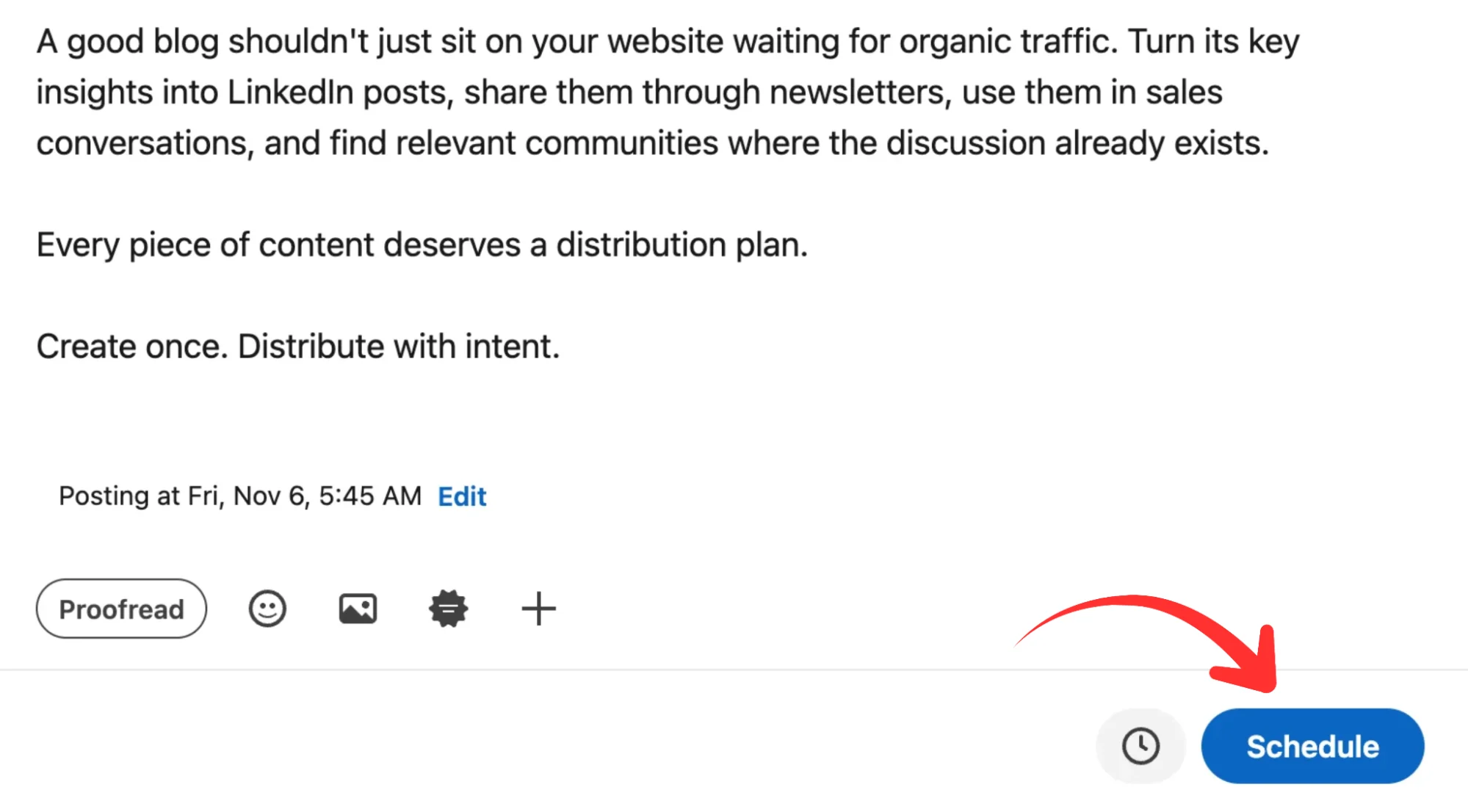
That’s the whole flow. The post now sits in your scheduled queue and goes live on its own at the time you set.
How to schedule LinkedIn posts on mobile
If you plan posts from your phone, the LinkedIn app has the same scheduler, just in a slightly different spot. It’s handy for queuing something the moment an idea strikes rather than waiting until you’re back at a computer.
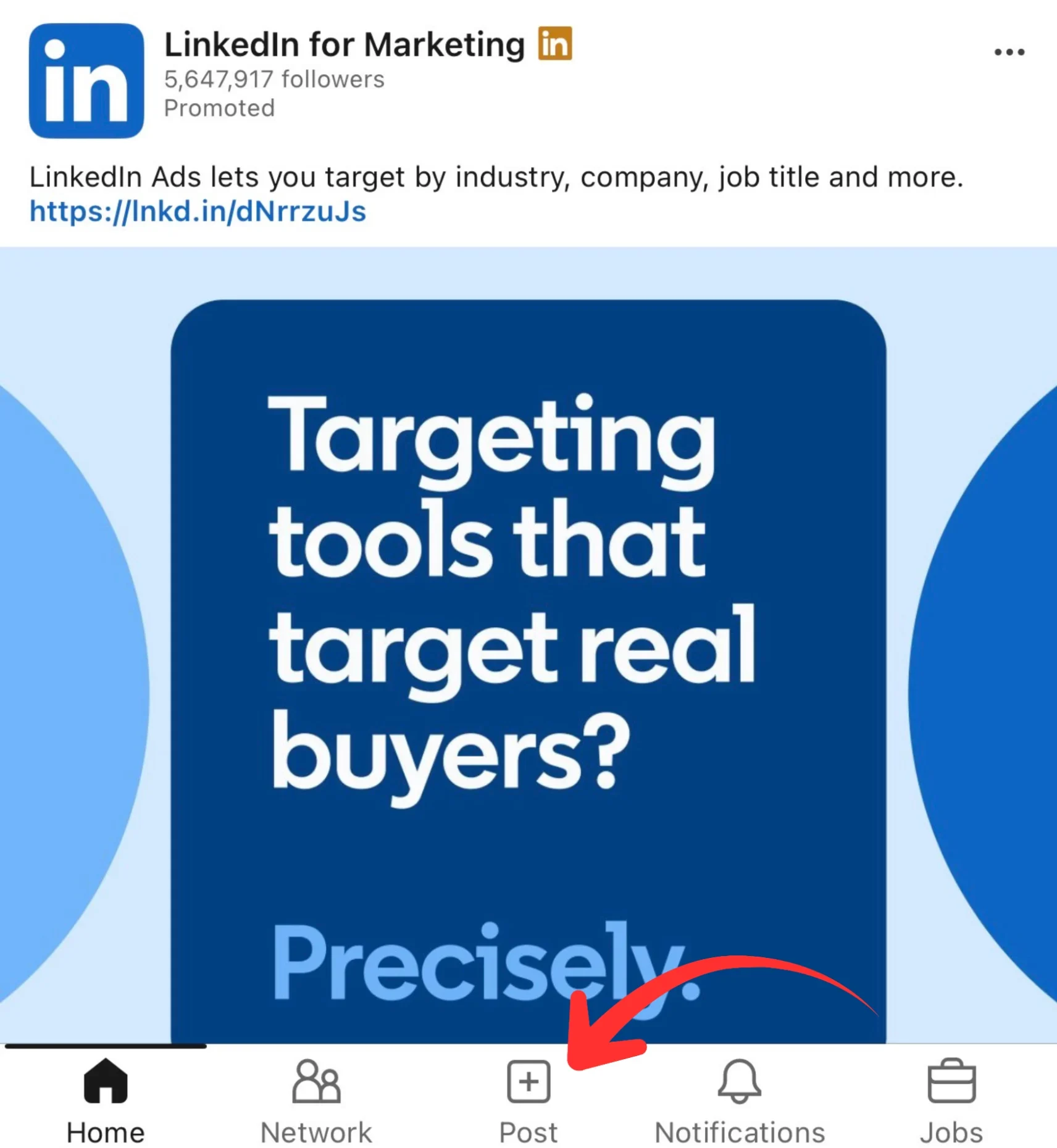
Open the app and tap the Post icon to start a new post, then write it and add any media as usual.
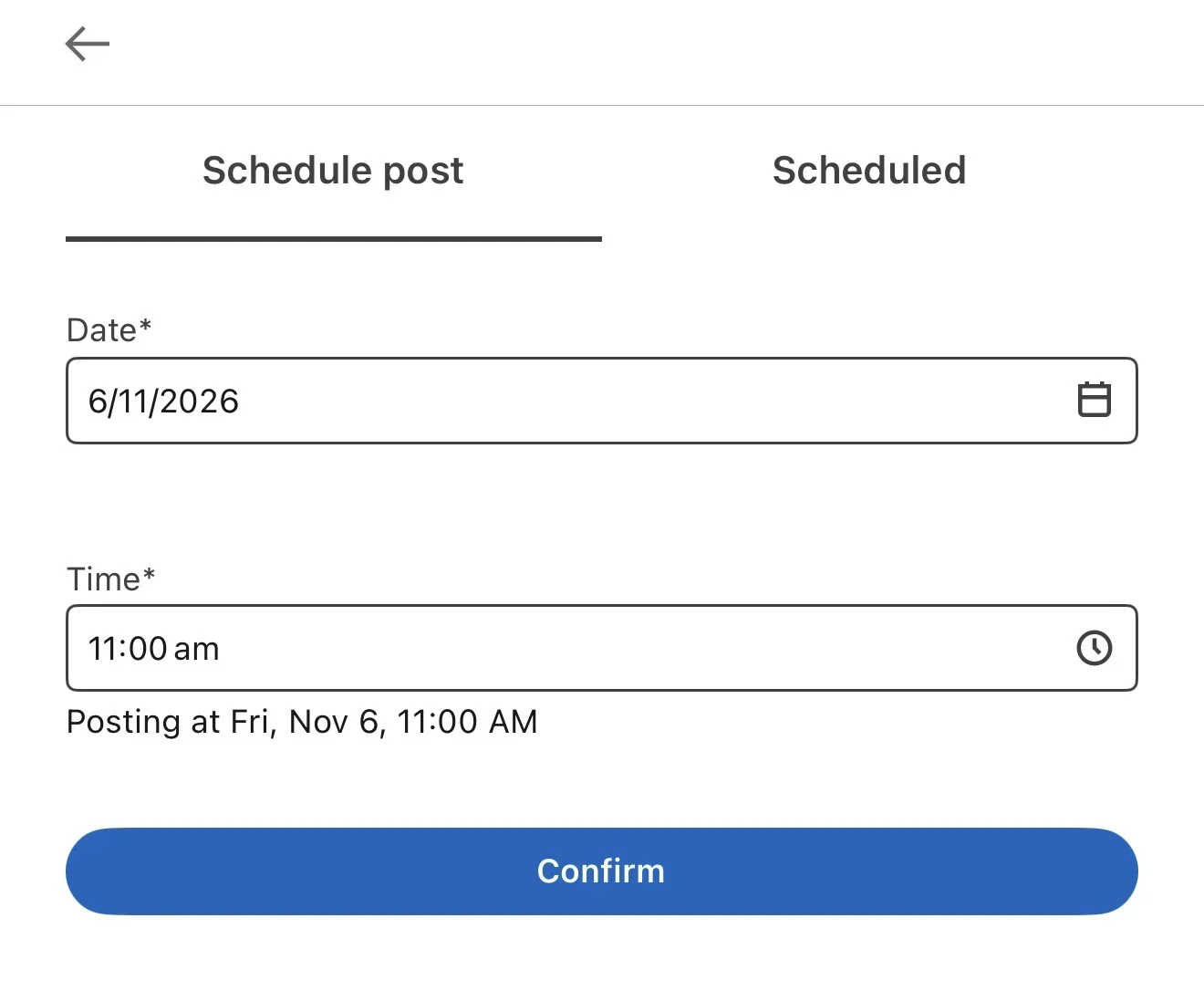
Tap the clock icon in the top right corner, choose your date and time, and tap Next.
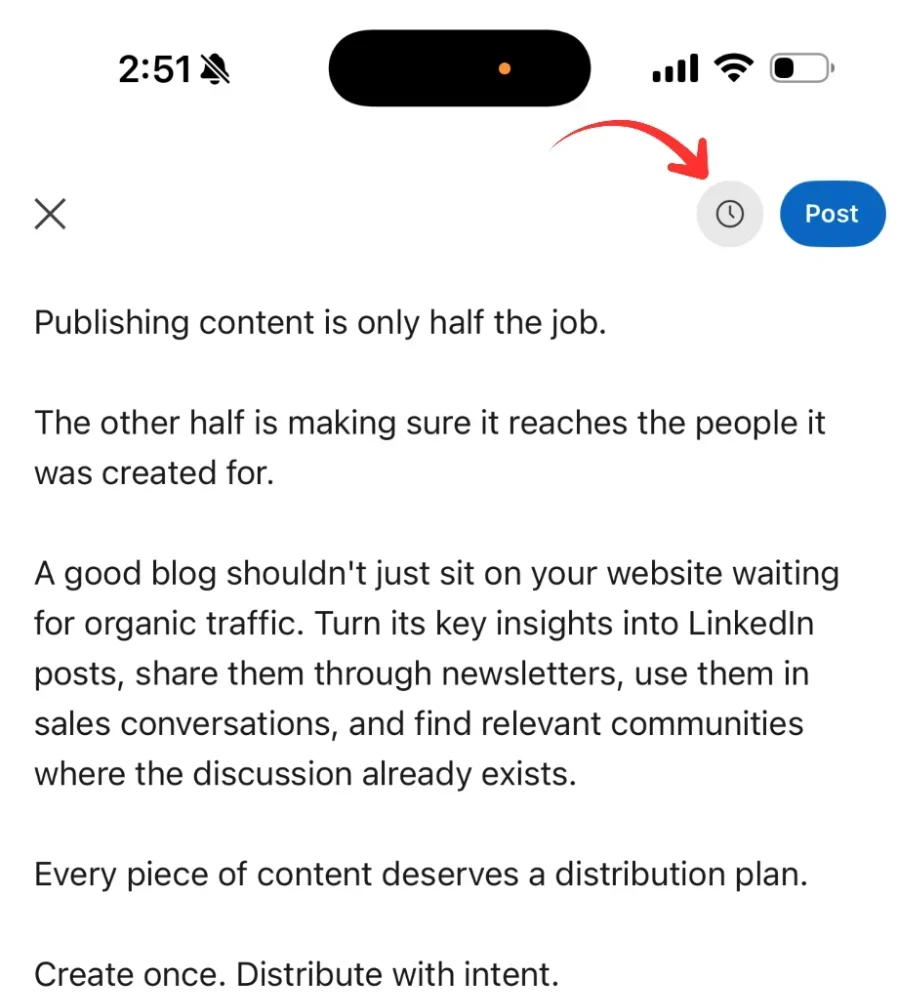
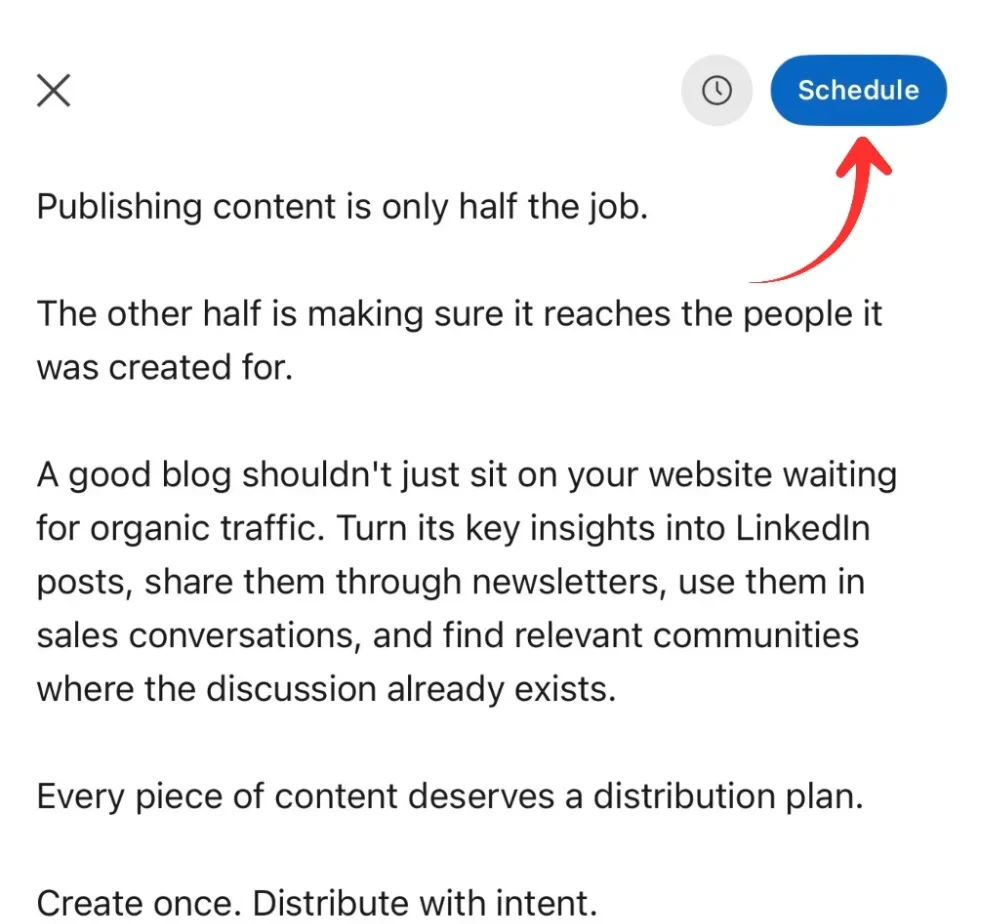
After you tap Next, a final tap on Schedule drops it into the same queue your desktop posts use, so everything lives in one place regardless of where you created it.
How to view or edit a scheduled post
Your scheduled posts live in the same place you created them.
Click Start a post, then click the clock icon, which displays the number of posts you have scheduled.
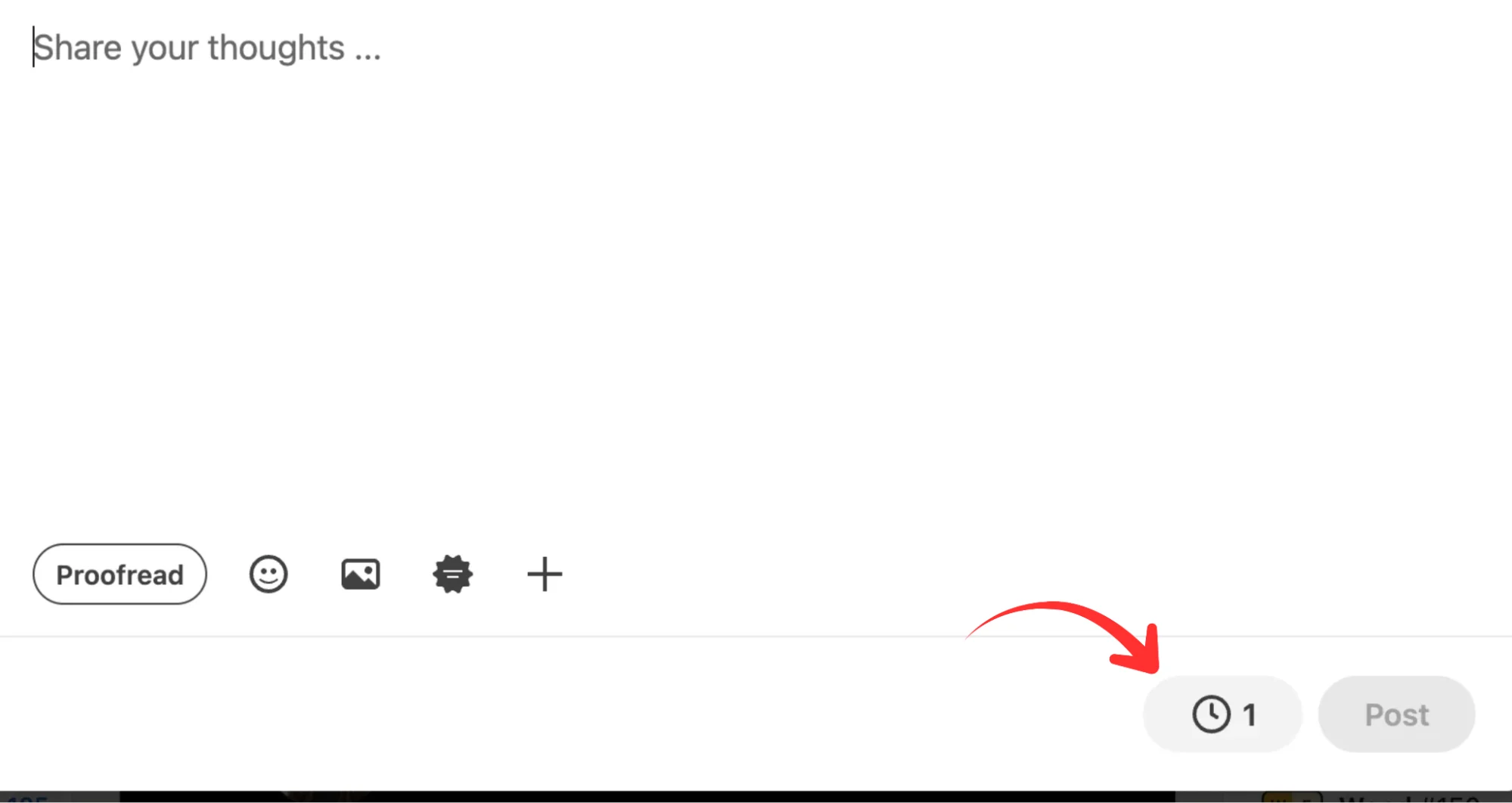
Select View all scheduled posts to see your upcoming posts and their publishing dates.
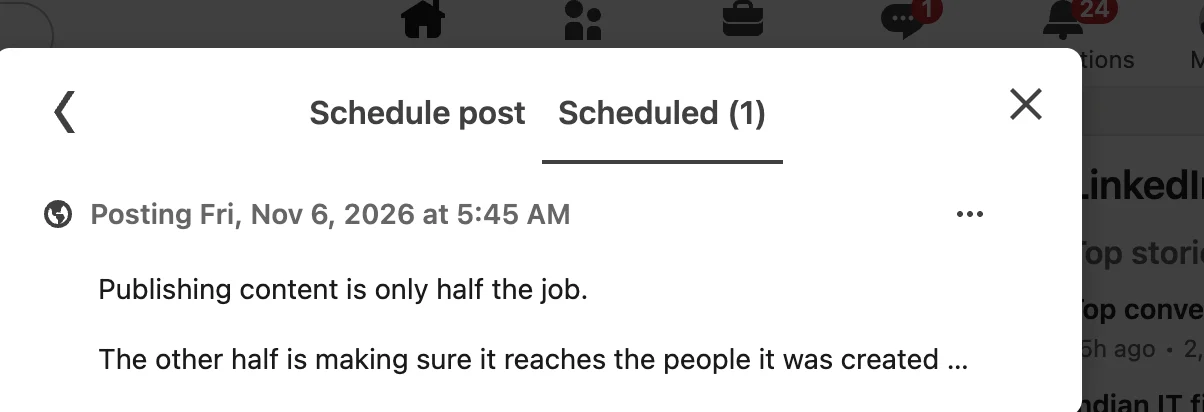
From there, you can reschedule or delete any post.
There’s one limitation worth knowing before you rely on this.
LinkedIn lets you change the scheduled time or remove a post entirely, but it won’t let you edit the text or media once the post is scheduled.
If you spot a typo or want to reword something, your only option is to delete the post and recreate it from scratch, which gets tedious fast if it happens often.
Where the native scheduler falls short
For basic scheduling, LinkedIn’s built-in tool does the job.
Teams managing multiple profiles or publishing at higher volumes may benefit from dedicated social media scheduling tools with bulk scheduling and shared calendars.
- No bulk scheduling. A month of content means placing each post by hand, one at a time.
- One account at a time. The moment you’re running a personal profile and a company page, or juggling several clients, there’s no single view to work from.
- A three-month ceiling. The scheduler only accepts times between ten minutes and three months out, so longer campaigns don’t fully fit.
- Thin analytics. You see surface numbers, but little on click-through, follower growth, or which posts are genuinely earning reach.
- It only schedules what you’ve already written. This is the real ceiling. The tool assumes the post exists. It won’t help you write it, turn one idea into several posts, or reshape a blog or video into a week of content.
Scheduling is the quick part. Creating everything you’re scheduling is the work that actually eats your week, and that’s the gap worth solving.
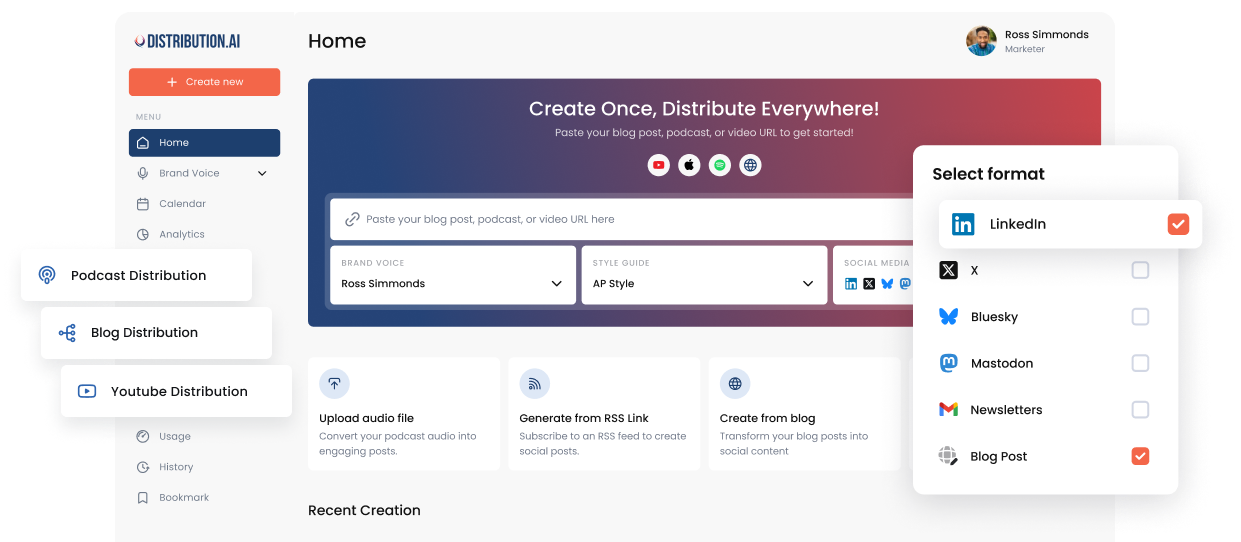
How to schedule LinkedIn posts with Distribution.ai
Scheduling in Distribution.ai works the way you’d expect, pick a post, set a date and time, queue it on a recurring slot, route it through team approval if you need to.
What changes is everything feeding that queue.
Instead of arriving at the scheduled step with posts you’ve already written, the posts are created, formatted, and ready by the time you get there. Here’s the full flow.
1. Turn one source into a batch of LinkedIn posts
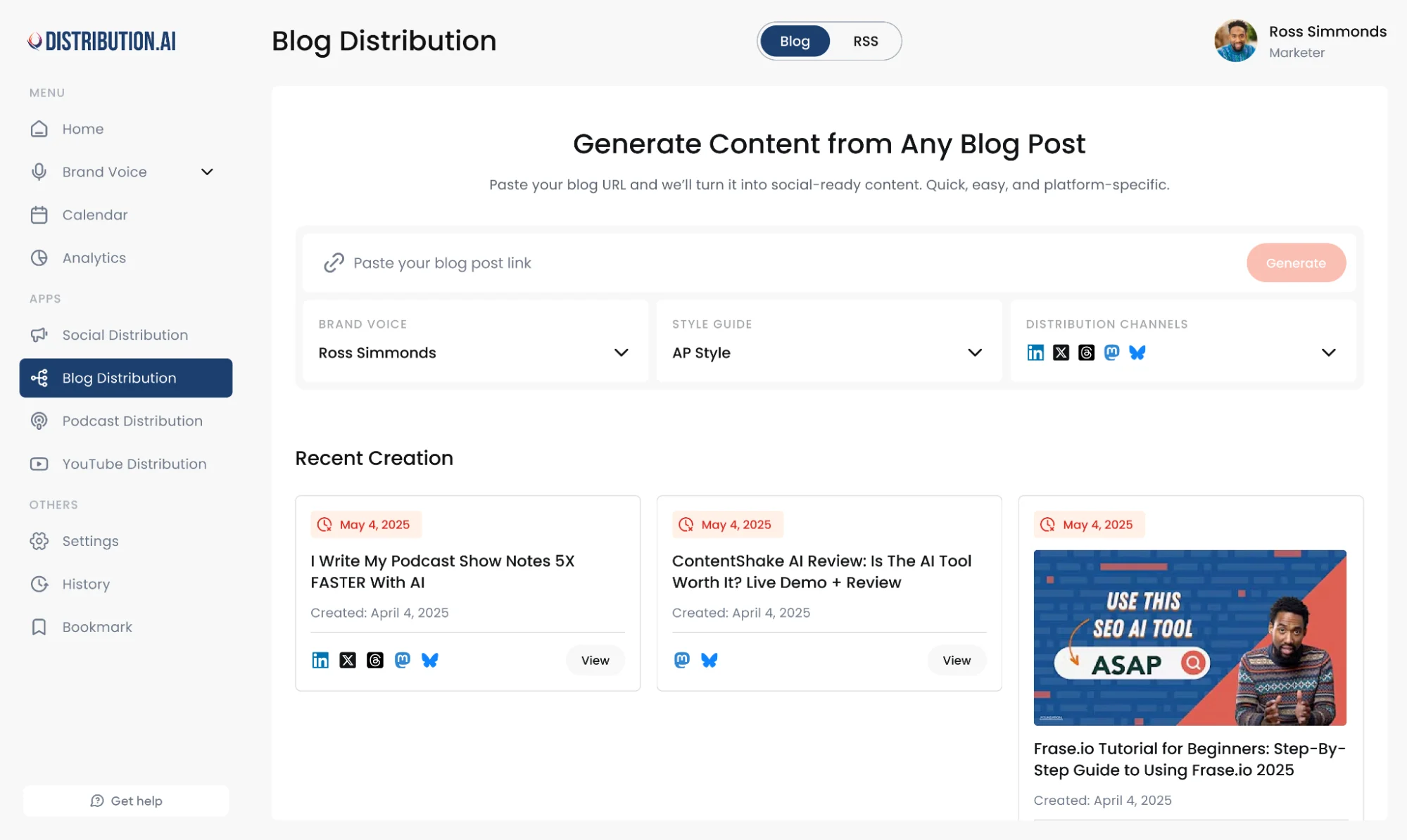
Rather than writing each post by hand, you point Distribution.ai at something you’ve already made, a blog, a podcast episode, or a YouTube video, or a plain prompt if the idea is still forming.
It reads the source, pulls out the strongest angles, and drafts several distinct LinkedIn posts from it, each taking a different cut rather than five versions of the same line.
One long-form asset can fill a week of the LinkedIn queue on its own.
2. Make it sound like you, not like AI
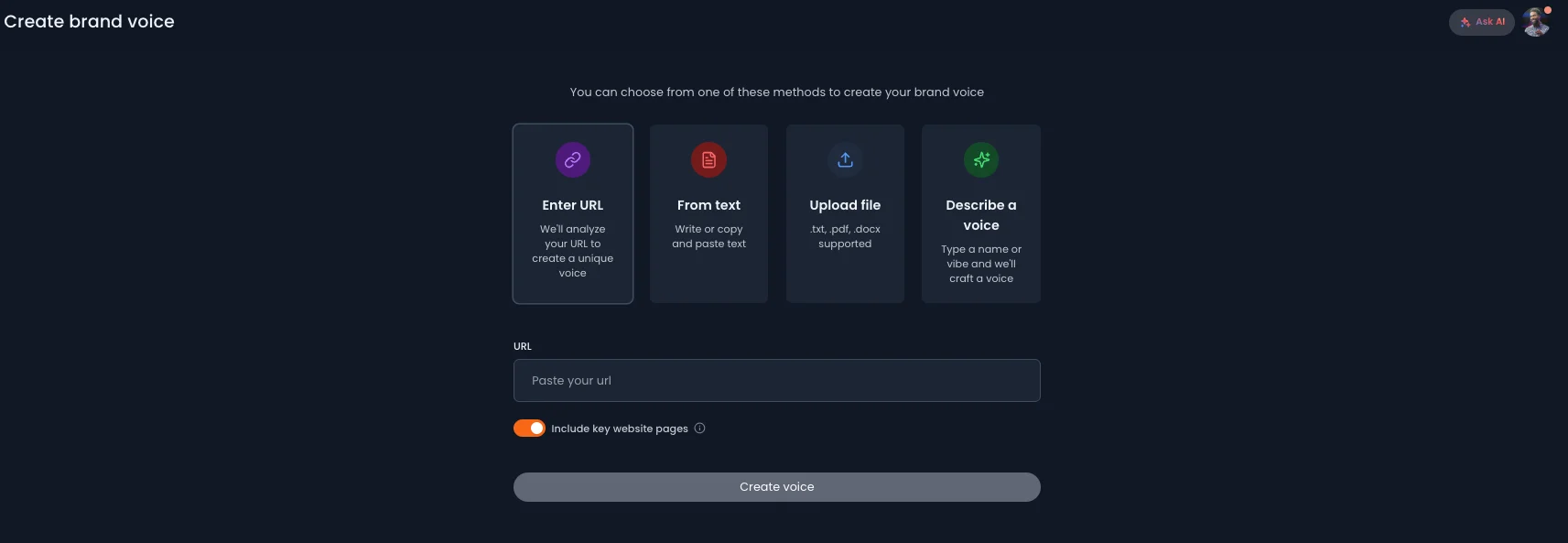
Generic output is the usual reason scheduled AI posts flop.
Distribution.ai gives you four ways to build a brand voice before generating anything. Paste a URL and let it analyze your site.
Drop in text you’ve already written. Upload a file. Or describe the tone you want in plain language and let it craft one from scratch.
The voice carries across every post the tool generates, so a LinkedIn article, an X post, and an Instagram caption from the same source all sound like they came from the same person.
3. Review, edit, and schedule from one screen
Every post lands as an editable draft, so you refine the wording, swap a line, or cut the ones that miss.
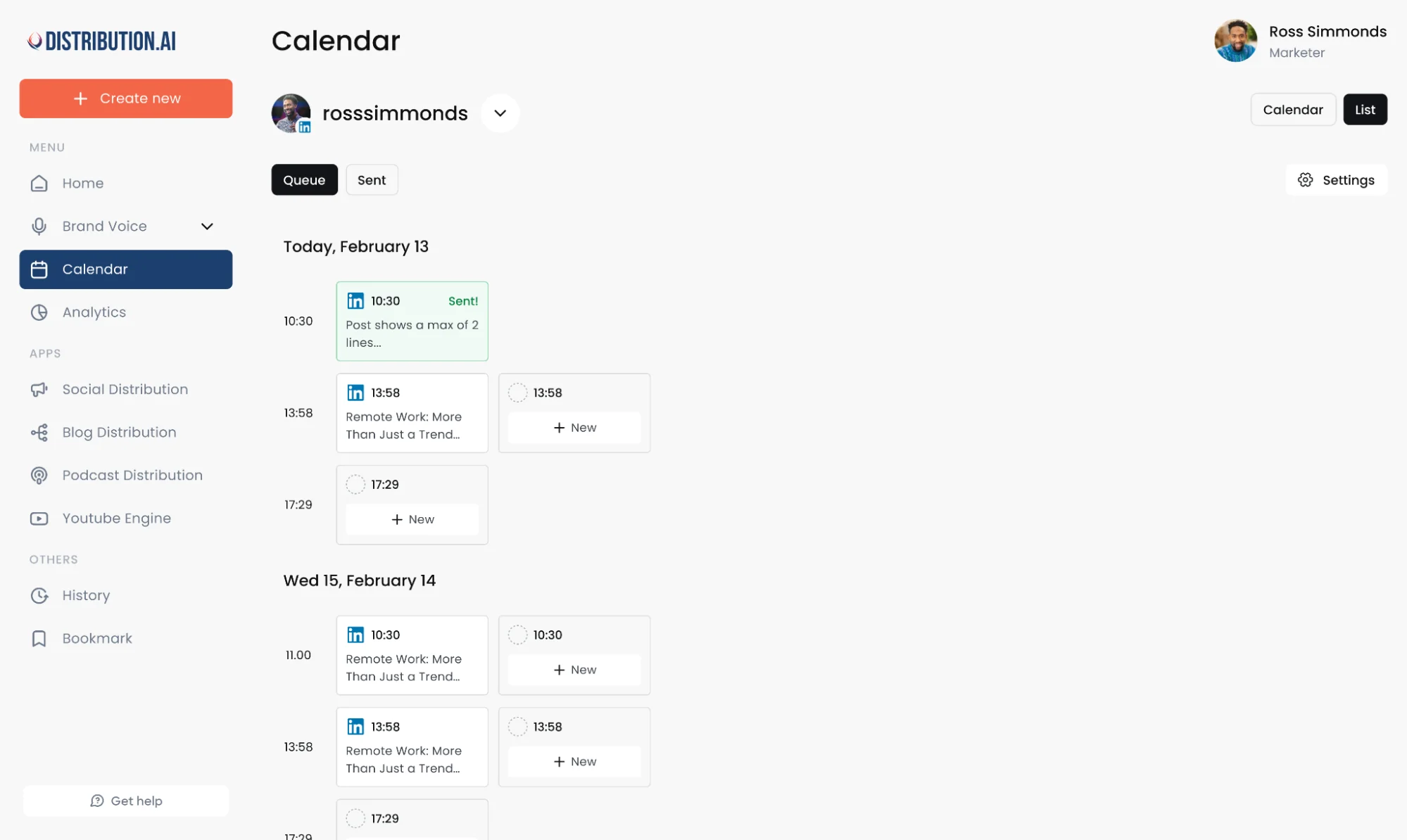
You can schedule posts directly from the same screen without exporting them to another tool. Set an exact publishing time or recurring slot to maintain a consistent posting schedule.
A social media content calendar can also help you organize upcoming content across different channels.
4. Let Autopilot keep the queue full
If you’d rather not run the flow manually each time, connect your blog, podcast, or YouTube feed once, and Autopilot drafts fresh LinkedIn posts automatically every time you publish something new.
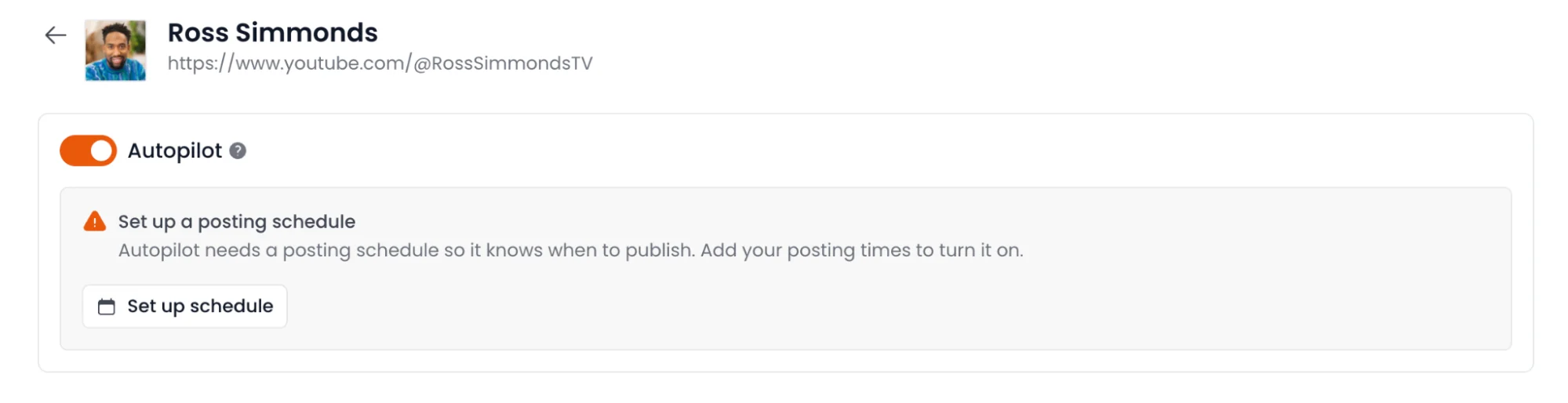 Your queue keeps filling from your own content without you starting from scratch each week.
Check out this guide to learn how social media automation can reduce repetitive publishing tasks.
5. Schedule your other channels in the same run
LinkedIn rarely lives alone. Because the same source produces posts shaped for each platform, you can schedule an X thread, a short-form video, or a newsletter alongside your LinkedIn posts, each formatted natively, all from one queue.
LinkedIn becomes one channel in a single distribution run instead of its own separate chore.
Scheduling stays the easy final step. The capability sits in everything that happens before it, turning your existing content into a full LinkedIn queue that actually sounds like you.
Native LinkedIn scheduler vs Distribution.ai
LinkedIn’s scheduler is useful when you already have the post written and simply want to publish it later.
Distribution.ai goes a step further. It helps create the content, repurpose it, and schedule it across multiple channels from one place.
| Feature | Native LinkedIn Scheduler | Distribution.ai |
|---|---|---|
| Creates posts | No, you write them yourself | Yes, from blogs, podcasts, videos, or prompts |
| Brand voice | No dedicated controls | Save, train, or define your brand voice |
| Bulk scheduling | One post at a time | Create and schedule multiple posts in one batch |
| Scheduling window | 10 minutes to 3 months ahead | No 3-month scheduling limit |
| Multiple channels | LinkedIn only, one account at a time | LinkedIn, X, Instagram, Threads, and more |
| Repurposing | Not available | Turns one source into content for multiple channels |
| Automation | Manual scheduling | Autopilot can draft posts from newly published content |
| Analytics | Basic LinkedIn insights | Cross-channel impressions, engagement, and clicks |
If you only need to schedule the occasional LinkedIn post you have already written, LinkedIn’s native scheduler does the job perfectly well.
Distribution.ai becomes useful when the real bottleneck is everything before and around scheduling: creating posts, repurposing content, maintaining multiple channels, and keeping the whole process consistent without spending hours on it every week.
How to schedule LinkedIn posts for better reach
Scheduling is also a reach lever.
When you post matters on LinkedIn, and a schedule lets you hit the right windows and keep a steady cadence. Four things to build in.
1. Post in the windows that work
The 2026 data lines up across every major study.
LinkedIn engagement runs highest Tuesday through Thursday, from mid-morning to mid-afternoon, and drops off on weekends.
One shift worth noting is that the best time to post on LinkedIn has moved later into the afternoon and early evening, as more people check the platform after work hours.
Start with the midweek block, then let your own analytics narrow it down. The single best hour depends on your audience, so treat the general window as a hypothesis and refine from there.
2. Mind the first hour
LinkedIn pushes a post based heavily on the engagement it gets in its first hour.
A post scheduled into a peak window lands while people are online to react early, which is the signal the feed responds to.
Where you can, reply to those first few comments yourself to build on it.
3. Show up every week
Reach comes from posting steadily. Most active LinkedIn users check in and engage on a weekly basis, so a consistent cadence keeps you visible and a two-week silence undoes your progress.
Queuing a week or a month ahead keeps you posting through the busy stretches when manual posting would stop.
4. Vary what you post
Timing gets a post seen, but format decides how it performs.
Rotate text posts, carousels, and video across the week instead of repeating one type, and give more room to whatever your analytics show is landing.
A strong post in a good midweek slot is worth more than a weak one you timed perfectly.
Getting more from every LinkedIn post you schedule
Consistency is what makes LinkedIn work, and scheduling is how most people manage to keep it up. If you plan your posts, you show up regularly even during the weeks you don’t have time to think about it, and that regularity is a big part of what earns you reach.
But scheduling only solves half the problem. You still have to write everything you’re putting in the queue.
For more ideas on generating LinkedIn posts with AI, explore these AI prompts for LinkedIn, including prompts for different post formats and writing styles.
And if writing is the slow part for you, Distribution.ai is worth a look. You give it a blog post or a video you’ve already made, and it drafts a set of LinkedIn posts in your own voice that you can edit and schedule across your channels from one screen.
If that’s the part of the process you keep getting stuck on, sign up for a
No credit card required. You can cancel anytime.
Frequently asked questions
1. Can you schedule posts on LinkedIn for free?
Yes. LinkedIn’s built-in scheduler is free for every account, on both personal profiles and company pages, with no premium plan needed.
You only pay if you want what the native tool doesn’t do, like creating the posts for you, bulk scheduling, or managing several accounts at once.
2. How many posts can you schedule on LinkedIn?
There’s no cap on the number. LinkedIn doesn’t limit how many posts you can queue, though every post has to be scheduled within three months of the current date.
The minimum lead time is ten minutes ahead on a personal profile, and an hour ahead on a company page.
3. Why can’t I schedule a post on LinkedIn?
Usually it’s one of a few things. The scheduler only works for personal profiles and company pages, so it won’t appear for Events, Jobs, or Service posts.
On a company page you need content admin access to see the option. And if you’re on mobile without the clock icon showing, your app is probably due an update.
4. Can you schedule posts to LinkedIn Groups?
No. The native scheduler only supports personal profile posts and company page posts.
Posts to Groups, Events, and the like have to be published live, so if scheduling into a Group matters to you, you’d need a workaround or a third-party tool that supports it.
5. Does LinkedIn tell people the post was scheduled?
No. A scheduled post looks identical to one you published live, and LinkedIn doesn’t flag it as scheduled or notify you when it goes out. Your audience has no way of knowing the difference.
6. Do scheduled posts get less reach on LinkedIn?
No, this is a common worry with no real basis. LinkedIn’s own scheduler doesn’t penalise scheduled posts, and they’re treated the same as live ones in the feed.
What actually affects reach is the timing and the quality of the post, not whether you queued it in advance. If anything, scheduling helps, since it lets you publish in high-traffic windows you might otherwise miss.
7. Is it better to schedule LinkedIn posts or post manually?
Scheduling wins for consistency, since it keeps you posting through busy weeks and lets you hit peak times without being at your desk.
Manual posting only really matters for reactive, in-the-moment content like commenting on breaking news. Most people do both, scheduling the bulk of their content and posting live when something timely comes up.
Author

Promote, repurpose & distribute your content with AI
Start 15-Day Free Trial