How to Use ChatGPT to Schedule a Week of LinkedIn Posts
Schedule LinkedIn posts with ChatGPT using an MCP connector. Setup steps, Developer mode plan notes and five prompts to plan a week of posts.
 By
Quick answer
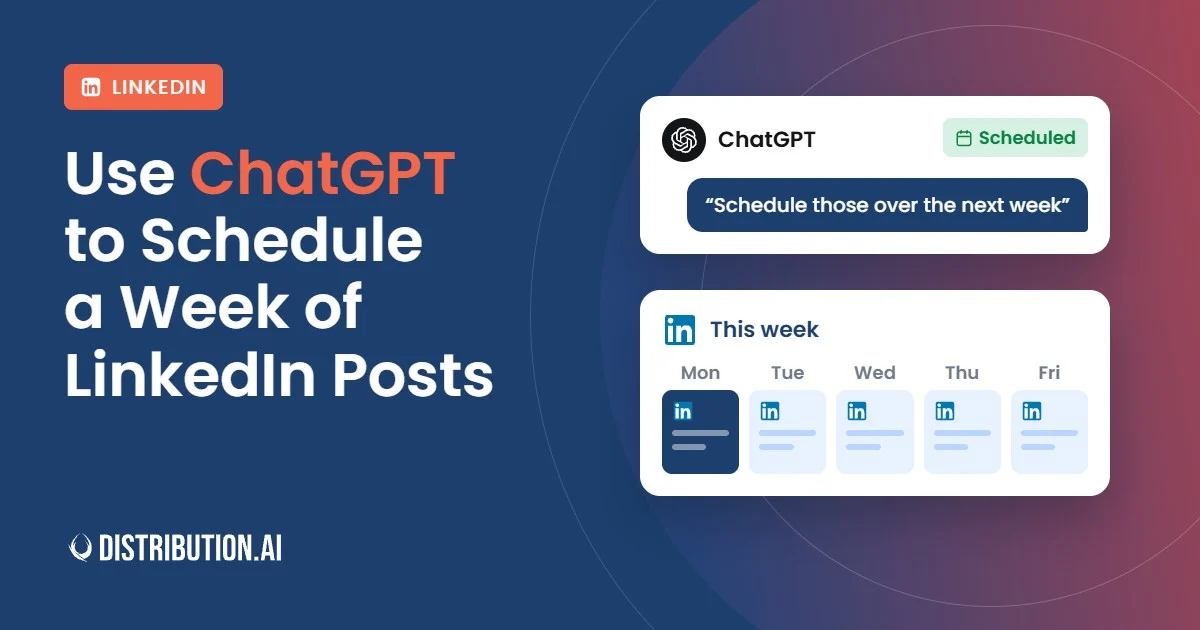
To schedule LinkedIn posts with ChatGPT, connect a scheduling tool to ChatGPT through an MCP connector, such as the Distribution.ai connector at app.distribution.ai/mcp. Then paste a link to your content, ask ChatGPT to draft a week of LinkedIn posts, review them, and say “Schedule those over the next week.” The posts land on your calendar in open slots, ready for review before they go live.
ChatGPT is already where a lot of marketers draft LinkedIn posts. The friction starts after the draft. You copy the text, open a scheduler, paste it in, pick a time, and repeat for every post.
An MCP connector removes that loop. With the Distribution.ai connector you can schedule LinkedIn posts from the same ChatGPT conversation where you wrote them. This guide covers setup, the exact prompts to use, and how to plan a full week of LinkedIn content in one sitting. In practice, ChatGPT becomes a LinkedIn post scheduler that writes into your existing LinkedIn content calendar.
Key Takeaways
- ChatGPT can create and schedule LinkedIn posts once you add an MCP connector like Distribution.ai.
- Setup happens once, through Developer mode in ChatGPT settings. Check that your ChatGPT plan supports it.
- Nothing publishes right away. Every post is scheduled into your open slots and appears on your calendar first.
- The best weekly workflow starts from one strong piece of content and turns it into five distinct LinkedIn posts.
- Approval workflows in your Distribution.ai workspace still apply to posts created from ChatGPT.
What you need to schedule LinkedIn posts with ChatGPT
ChatGPT on its own cannot post to LinkedIn. It needs a connection to a tool that holds your LinkedIn account and your posting calendar. That connection runs on MCP (Model Context Protocol), an open standard that lets AI assistants work with other apps.
OpenAI launched apps in ChatGPT, built on MCP, on October 6, 2025. A custom ChatGPT MCP connector, like the one for Distribution.ai, is added through ChatGPT Developer mode. As of October 2026, OpenAI’s help center says full MCP connectors with write actions are rolling out in beta to ChatGPT Business, Enterprise and Edu plans, Pro users can connect MCPs with read and fetch permissions in Developer mode, and Developer mode is web only (OpenAI Help Center). Availability changes often, so confirm what your plan supports before you start.
Here is the full checklist.
| Requirement | Where to get it |
|---|---|
| A ChatGPT plan with Developer mode and write actions | Check your plan in ChatGPT settings and OpenAI’s help center |
| A Distribution.ai account | Start a 15-day free trial at app.distribution.ai/register |
| A connected LinkedIn account | Connect it inside Distribution.ai |
| A posting schedule | Set it up under Settings in Distribution.ai |
| An active subscription or trial | Needed for creating and scheduling. Reading content and calendar works on any plan. |
How to connect Distribution.ai to ChatGPT
You do this once. After that, the connector is available in any conversation.
Copy the connector URL
The URL is https://app.distribution.ai/mcp
Create an app in ChatGPT
In ChatGPT on the web, open Settings, turn on Developer mode, then create an app. Name it Distribution.ai and paste the URL. Menu labels can change, so follow the current setup guide if things look different.
Sign in
Sign in with your Distribution.ai account when prompted.
Choose your workspace
Pick the Distribution.ai workspace that holds your LinkedIn account and posting schedule.
Test the connection
Ask “What channels do I have connected?” If LinkedIn shows up, you are ready.
Prefer Claude? The steps are almost identical. Our guide on how to connect Claude to your social media accounts walks through the Claude version.
How to plan a week of LinkedIn posts in one ChatGPT conversation
With the connector in place, a week of LinkedIn content takes one conversation. The workflow below is the one we recommend for B2B teams.
Start from a source, not a blank page
The strongest LinkedIn posts come from real ideas you have already worked out. Pick one substantial piece: a blog post, a podcast episode or a YouTube video. Older posts work well here. Our guide on redistributing old blog posts explains how to choose them.
The five-prompt weekly workflow
- Create: “Turn this blog post into five LinkedIn posts, each built around a different idea.” Then paste the link.
- Refine: “Make the LinkedIn ones shorter” or “Punchier hooks, no hashtags.” Edit as many times as you need.
- Check: “What’s going out this week?” This shows what is already scheduled so you avoid stacking posts.
- Plan: “Schedule those over the next week.” Distribution.ai fills your open posting slots. You confirm first.
- Review: Open your Distribution.ai calendar and give each post a final read before it goes live.
Pro tip: ask for each post to use a different format. One story, one framework, one contrarian take, one practical checklist and one question for the audience gives your week variety while staying on one theme.
Bring your own drafts
Already wrote your posts? The connector can stage your own text, up to 50 posts at a time, and then schedule them. That is useful if your team drafts in a doc and only needs the scheduling step.
Staying in control of what goes out
Handing scheduling to an AI assistant raises a fair question about control. The Distribution.ai connector was built with a few guardrails:
- Nothing posts right away. Every post is scheduled and appears on your calendar first.
- Permissions are clear: read for content and calendar, write to create and edit, and posts:write to schedule.
- If your workspace requires approval, posts are staged and wait for approval in the app.
- You can disconnect anytime under Settings, then Connected apps, then Revoke. It stops working on the next request.
- The connector cannot read your Distribution.ai chat history, reach another workspace, or swap one channel for another.
These controls matter for agencies and larger teams where several people touch the brand. We dig into the wider question of how much autonomy to give AI tools in AI Agents for Social Media: What They Can and Can’t Do in 2026.
Writing LinkedIn posts that earn attention
Scheduling is the easy part. The posts still have to be worth reading. A few principles hold up regardless of tool:
- Lead with a specific claim, result or tension in the first two lines.
- Teach one idea per post. Save the rest for another day.
- Write like a person talking to a peer. Short sentences. Plain words.
- Use your brand voice settings so the posts sound like you. You can create and edit brand voices directly in the ChatGPT chat.
- Link back to the source when it adds value, and ask your team to engage early.
Ross Simmonds has a long list of LinkedIn promotion tactics, paid and organic worth bookmarking. For how LinkedIn fits into a broader B2B plan, Foundation’s guide to content distribution strategy is a solid next read.
Want to try drafting without connecting anything? The free AI LinkedIn post generator turns talking points into a draft in seconds.
Go deeper
Frequently asked questions
Can ChatGPT post directly to LinkedIn?
Not by itself. ChatGPT needs a connector to a tool that manages your LinkedIn account. With the Distribution.ai MCP connector, ChatGPT can create posts and schedule them into your Distribution.ai calendar, which then publishes to LinkedIn.
Which ChatGPT plan do I need?
You need a plan that supports Developer mode with write actions for custom MCP connectors. As of October 2026, OpenAI lists full MCP connectors as rolling out in beta to Business, Enterprise and Edu, with read and fetch access for Pro. Check OpenAI’s help center for the latest.
Will ChatGPT publish posts without my approval?
No. The Distribution.ai connector never publishes right away. Every post is scheduled and appears on your calendar first, and workspaces with approval workflows keep that step.
Can I schedule to other channels besides LinkedIn?
Yes. The connector schedules to LinkedIn, X, Threads, Facebook, Mastodon and Bluesky. Instagram and Pinterest posts need an image, so schedule those from the Distribution.ai app.
Does it work in Claude too?
Yes. In Claude you add Distribution.ai as a custom connector with the same URL. The prompts work the same way.
What does it cost?
Reading your content and calendar works on any Distribution.ai plan. Creating and scheduling posts needs an active subscription or trial. You can start with a 15-day free trial, no credit card required.
Plan next week’s LinkedIn posts in one chat
Connect Distribution.ai to ChatGPT and go from source content to a scheduled week in minutes.
No credit card required.
Author

Promote, repurpose & distribute your content with AI
Start 15-Day Free Trial