How to Connect Claude to Your Social Media Accounts (Step-by-Step)
Connect Claude to social media in 5 steps with the Distribution.ai MCP connector. Create, schedule and approve LinkedIn and X posts from one chat.
Quick answer
To connect Claude to social media, add the Distribution.ai MCP connector as a custom connector in Claude (Settings → Connectors → Add custom connector), paste https://app.distribution.ai/mcp, sign in and pick your workspace. Claude can then turn your content into posts and schedule them to LinkedIn, X, Threads, Facebook, Mastodon and Bluesky, with every post landing on your calendar before it goes out.
You already use Claude to draft posts. The slow part is everything after the draft: copying text into a scheduler, fixing character limits, picking times, checking what’s already queued.
This guide shows you how to connect Claude to social media accounts through a Claude MCP connector, so you can go from a blog post link to a scheduled week of LinkedIn and X posts in one conversation. It takes about five minutes to set up. You do it once.
Key Takeaways
- Claude connects to outside apps through MCP (Model Context Protocol), an open standard. A custom connector is how you add one.
- The Distribution.ai connector lets Claude create, refine, schedule and check posts on your connected channels.
- Nothing publishes instantly. Every post is scheduled and shows up on your calendar first, and workspace approvals still apply.
- You need a Distribution.ai account, one connected social channel and a posting schedule before you connect.
- Reading content and your calendar works on any plan. Creating and scheduling posts needs an active subscription or trial.
What it means to connect Claude to social media
Claude can’t log in to LinkedIn on its own. It needs a bridge to a tool that already has permission to post on your behalf. That bridge is a connector.
Anthropic announced support for remote MCP connectors (it called them Integrations) on May 1, 2025. As of October 2026, Anthropic’s help center says custom connectors using remote MCP are available on Free, Pro, Max, Team and Enterprise plans, with Free users limited to one custom connector.
When you add the Distribution.ai MCP connector, Claude gets access to your Distribution.ai workspace: your connected channels, your posting schedule, your brand voices and your calendar. Distribution.ai holds the channel connections. Claude does the thinking and the asking. You make the calls.
Which channels you can schedule to
| Channel | From Claude | Notes |
|---|---|---|
| Create and schedule | The most common use case for B2B teams | |
| X | Create and schedule | Character limits checked before scheduling |
| Threads, Facebook, Mastodon, Bluesky | Create and schedule | Same flow as LinkedIn and X |
| Instagram, Pinterest | Schedule from the app | These posts need an image |
| YouTube | Source only | Turn videos into posts for other channels |
Before you start: a 3-item checklist
Get these in place first. Each one takes a minute inside Distribution.ai, and skipping them is the main reason a first connection feels broken.
- A Distribution.ai account. A 15-day free trial works. No credit card required.
- At least one connected social channel. Connect LinkedIn first if that’s where your buyers are.
- A posting schedule. Set it under Settings. Claude fills open slots in this schedule, so without one it has nowhere to put posts.
How to connect Claude to LinkedIn and your other social accounts
Here is the full setup to connect Claude to LinkedIn and every other channel in your workspace. You’ll do this in Claude on the web or desktop.
Copy the connector URL
The Distribution.ai connector lives at https://app.distribution.ai/mcp. Copy it.
Add a custom connector in Claude
Open Settings → Connectors → Add custom connector. Name it something obvious, like Distribution.ai, and paste the URL. On Team plans, only Owners and Primary Owners can add custom connectors, so ask yours if the button is missing.
Sign in to Distribution.ai
Click Connect. You’ll be asked to sign in with your Distribution.ai account and approve the permissions.
Choose your workspace
Agencies and teams often have more than one. Pick the one with the channels you want Claude to work with. The connector can’t reach any other workspace.
Run your first prompt
Ask Claude: “What channels do I have connected?” If it lists your LinkedIn page and other accounts, you’re live.
Menu labels in Claude change from time to time. If something looks different, the connector setup guide has the current path, plus permissions and limits.
What to ask Claude once it’s connected
The connector does five jobs. Each has a prompt that works on day one.
1. Create posts from a link
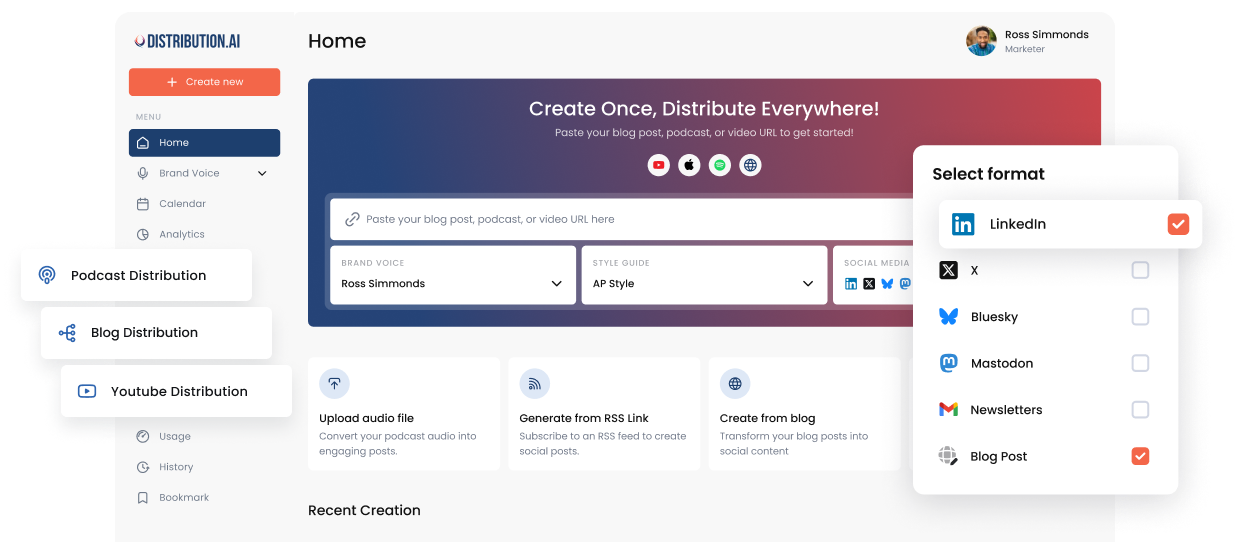
Paste a blog post, podcast episode or YouTube video and say “Turn this blog post into LinkedIn and X posts.” You get posts per channel, with character limits checked before anything is scheduled. This is the core of Create Once, Distribute Forever, the idea Ross Simmonds has built his work around: one strong asset should feed many channels.
2. Refine without starting over
“Make the LinkedIn ones shorter.” “Punchier, no hashtags.” Claude edits the posts it already made in the same chat. You can also stage posts you wrote yourself, up to 50 at a time, and schedule them.
3. Schedule social posts with Claude
Say “Schedule those over the next week.” Distribution.ai fills your open posting slots. Claude confirms the plan with you first, and every post appears on your calendar before it goes out.
4. Check what’s going out
“What’s going out this week?” shows what’s scheduled, what published and what failed. You can find your next open slots or cancel a whole batch in one step.
5. Keep your brand voice
Create and edit brand voices and style guides right from the chat, so every post sounds like your company.
Pro tip: Start every session with the same link-first prompt. Claude does its best work when it reads the source asset, then writes for each channel. Ross’s list of LinkedIn promotion tactics is a good reference for the angles worth asking for.
How the Claude MCP connector keeps you in control
Handing an AI assistant access to your company’s social accounts should make you a little nervous. The connector is built around that.
- Nothing posts right away. Every post is scheduled and shows up on your calendar first.
- Clear permissions. Read covers your content and calendar. Write covers creating and editing. posts:write covers scheduling.
- Approvals still apply. If your workspace requires approval, posts are staged and wait for a reviewer in the app.
- Tight scope. It can’t read your Distribution.ai chat history, reach another workspace or swap one channel for another.
- Easy to revoke. Settings → Connected apps → Revoke. It stops working on the next request.
For larger teams, that approval layer matters most. Claude drafts and schedules. A human still signs off. We cover where that line should sit in AI Agents for Social Media: What They Can and Can’t Do in 2026.
A simple weekly workflow for B2B teams
Once Claude is connected to your social media accounts, a full week of distribution can run on one 20-minute session.
- Monday: paste last week’s best blog post or episode and ask for LinkedIn and X posts.
- Refine tone and length in two or three prompts.
- Ask Claude to schedule them across the week’s open slots.
- Ask “What’s going out this week?” to confirm the calendar.
- Friday: ask what published and what failed, then fix anything that broke.
Scheduling is only part of the job. The bigger win comes from treating every asset as something to distribute for months. We break that down in Content Distribution vs Social Media Scheduling. If you work in ChatGPT instead, follow How to Use ChatGPT to Schedule a Week of LinkedIn Posts.
Go deeper
Frequently asked questions
Can Claude post directly to LinkedIn?
Not by itself. Claude needs a connector to a tool that holds your LinkedIn connection. With the Distribution.ai connector, Claude can create and schedule LinkedIn posts, and they publish from your Distribution.ai calendar at the scheduled time.
Which Claude plans support custom connectors?
As of October 2026, Anthropic lists custom connectors on Free, Pro, Max, Team and Enterprise plans. Free is limited to one custom connector. On Team, only Owners and Primary Owners can add them. Check Anthropic’s help article for the latest.
Will Claude publish anything without asking me?
No. The connector never publishes right away. Every post is scheduled and appears on your calendar first, and workspaces with approval rules keep that step.
Do I need a paid Distribution.ai plan?
Reading your content and calendar works on any plan. Creating and scheduling posts needs an active subscription or trial. The 15-day trial covers it.
Can I schedule Instagram posts from Claude?
Instagram and Pinterest posts need an image, so schedule those from the Distribution.ai app. LinkedIn, X, Threads, Facebook, Mastodon and Bluesky all work from Claude.
How do I disconnect Claude?
In Distribution.ai, go to Settings → Connected apps → Revoke. The connection stops on the next request. You can also remove the connector in Claude’s settings.
Put Claude to work on your distribution
Connect once. Turn every post, episode and video into a scheduled week of social.
No credit card required.
Promote, repurpose & distribute your content with AI
Write 10x faster, engage your audience, & never struggle with the blank page again.
Start 15-Day Free Trial
Frequently Asked Questions
Author

Promote, repurpose & distribute your content with AI
Start 15-Day Free Trial